Your course dashboard
Once you register for a course, it gets its own dashboard that pulls everything about that class into one screen: what's coming up, what you have to do, what your classmates are asking, and the resources you've collected. It's the fastest way to get oriented before a lecture or a study session.
- 🖥 Web
- 📱 Mobile
-
Open Courses and click a course tile to open its dashboard.
-
The dashboard lays out panels for the course: Notes (your private notes), Links, Next events, Related discussions, Next tasks, and Related resources.
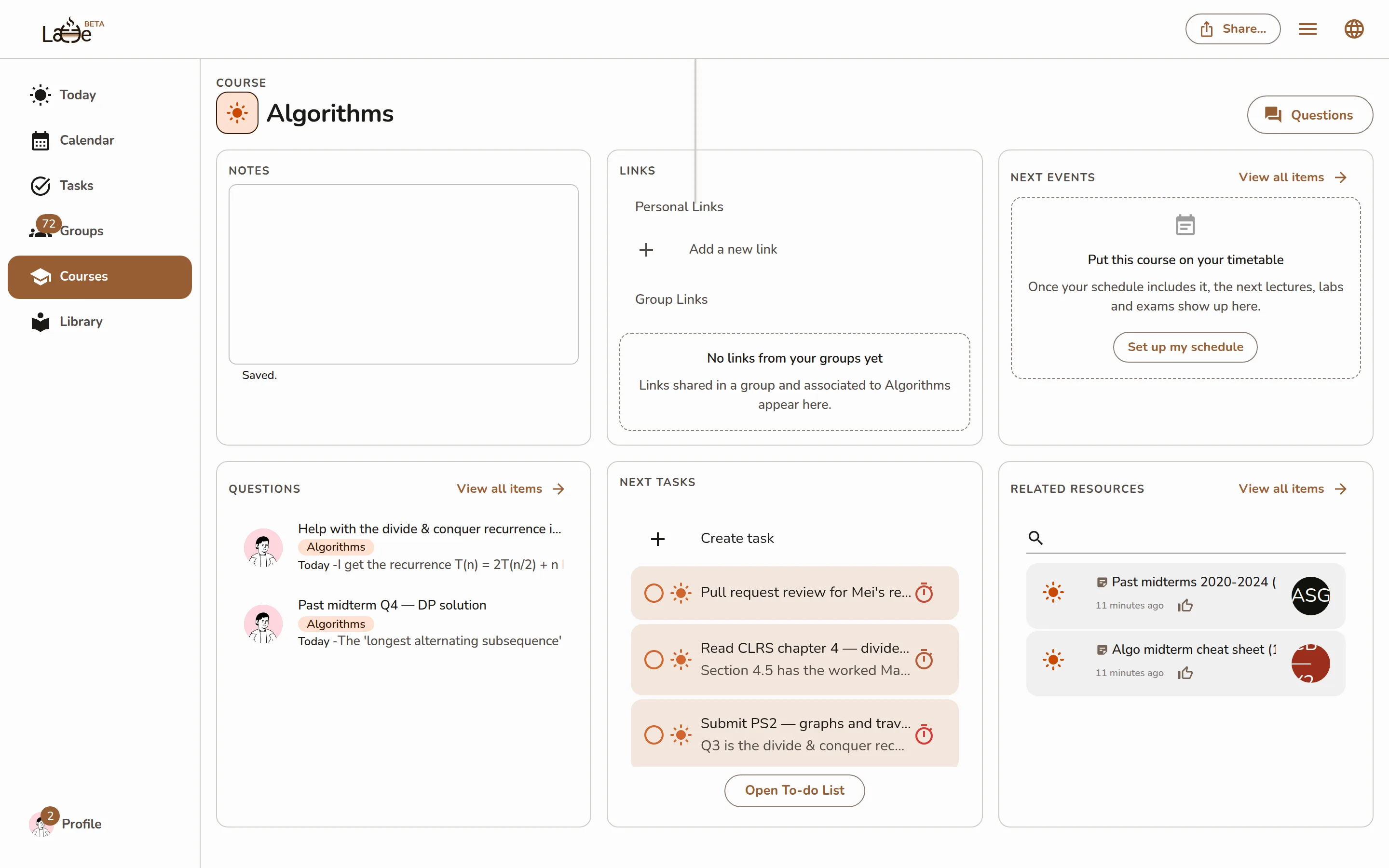
A course dashboard showing its panels — Notes, Links, Next events, Related discussions, Next tasks, and Related resources -
Panels with more behind them show a link to open the full page — for example, the calendar, the discussions, and the shared resources.
-
Open the Library tab and tap a course on the Your courses shelf.
-
The course screen stacks its panels — Links, Next events, Next tasks, Related resources, and Related discussions. Tap any panel to open it full-screen.
Screenshot coming soonThe mobile course screen with its stacked panels and the private Notes field at the bottom -
Your private Notes field sits at the bottom of the screen.
The dashboard updates in real time. A task or resource a classmate shares to the course shows up without a refresh, and your own changes sync to every device instantly.