Install and open Latte
Latte runs in your browser, as a desktop app, and on your phone — pick whichever fits how you study. It's the same account everywhere, so pick one to start and add the others whenever you like.
- 🖥 Web
- 📱 Mobile
-
Open your browser and go to app.latte.study.
-
Latte loads straight to the sign-in screen.
Screenshot coming soonThe Latte web sign-in screen as it loads at app.latte.study, showing the Continue with Google option and the Try a demo button -
From here you can sign in with Google, or try the demo without an account.
Latte also comes as a desktop app for Windows, macOS, and Linux — it's the same experience as the web app, in its own window. Once it's installed, open it like any other application and you'll land on the same sign-in screen. See Web, desktop, and mobile differences for what changes between them.
There's no public download link for the desktop app yet, so there's nothing to install on your own right now. Use Latte in your browser in the meantime — it's the same app.
Latte is published on both stores — open the listing for your phone:
- iPhone and iPad — Latte on the App Store
- Android — Latte on Google Play
-
Open the listing for your phone, or search the App Store / Google Play for Latte.
-
Install the app, then tap to open it.
-
Latte opens to the sign-in screen.
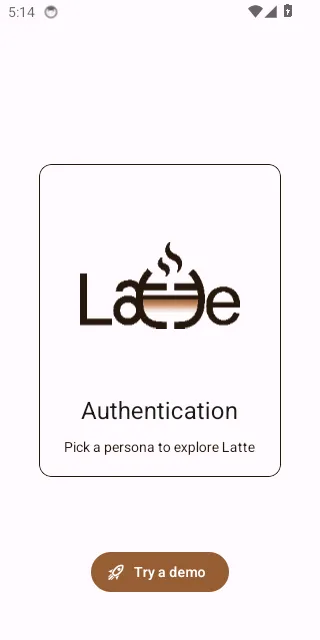
The Latte mobile sign-in screen right after opening the app, with the Try a demo button pinned at the bottom -
From here you can sign in with Google, or try the demo.
Sign in on both web and mobile and everything — your calendar, chats, and tasks — stays in sync in real time.