Personal notes and links for a course
Every course dashboard gives you a private corner: a free-text Notes field that saves as you type, and a Links list for the URLs you want to keep close. Both are visible only to you — they're your scratchpad for a class, not a shared resource.
Your notes and personal links are private to you. To share a resource with classmates instead, see Share a lecture note.
- 🖥 Web
- 📱 Mobile
-
Open a course dashboard (see Your course dashboard).
-
In the Notes panel, just start typing. Latte saves automatically — there's no Save button.
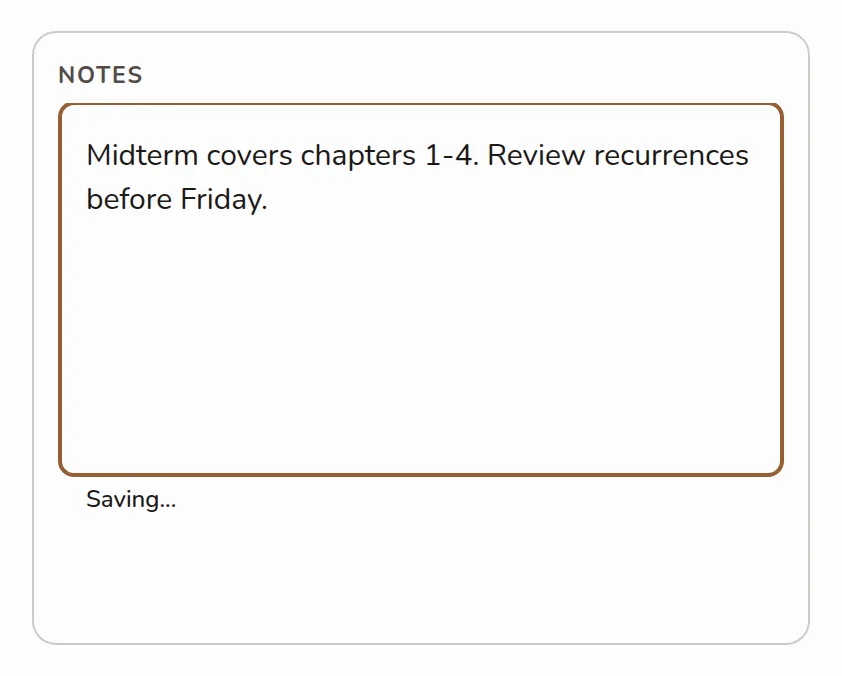
The Notes panel on a course dashboard with a few lines of private notes typed in -
In the Links panel, under Personal Links, add a link: enter the URL and click Add. Links you add here are only visible by you.
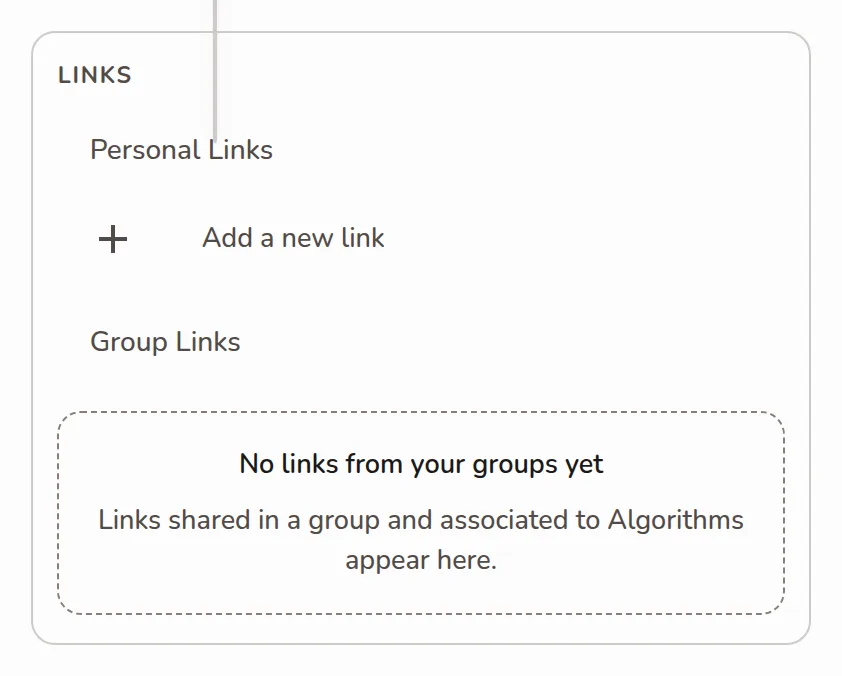
The Links panel on a course dashboard showing the Personal Links and Group Links sections -
Below your personal list, a Group Links section shows links your groups have curated for this course. Those are read-only here.
-
Open the Library tab and tap the course on the Your courses shelf.
-
Scroll to the Notes field at the bottom of the screen and type. It saves automatically.
Screenshot coming soonThe private Notes field at the bottom of the mobile course screen with a note typed in -
To manage links, tap the Links panel, tap add, then enter the URL.
-
Your personal links stay private; the Group Links section shows what your groups shared.
Personal Links are just for you. Group Links are curated by your groups and appear here automatically whenever a link is tagged to this course — see Group links.