Quick-capture a resource
Getting something into Latte takes seconds — a lecture slide deck, a photo of the whiteboard, a useful link, or a quick thought. On the web that's the Share sheet; on mobile it's the Capture button.
Capture now asks one extra question — Turn this into — with two answers: Keep as a note, filed in your Library and shareable with your groups, or Add as a task, with an optional deadline, which goes straight into your task list and competes for a place in your next three.
Either way, you always see exactly who will get it before anything is shared.
To share with classmates you need to be in at least one group — see Create a group or Explore and join your school's groups. No groups yet? You can still capture and keep it private.
- 🖥 Web
- 📱 Mobile
-
Click the Share… button in the top bar — it's there on every page. (The Library's Share something button and a group's + Share menu open the same sheet; from a group, that group is already selected as the audience.)
-
The Share sheet opens with the audience first. Next to To, use Add group or course to pick the groups that should see it. Under the pickers, the sheet counts who that reaches — Visible to N members.
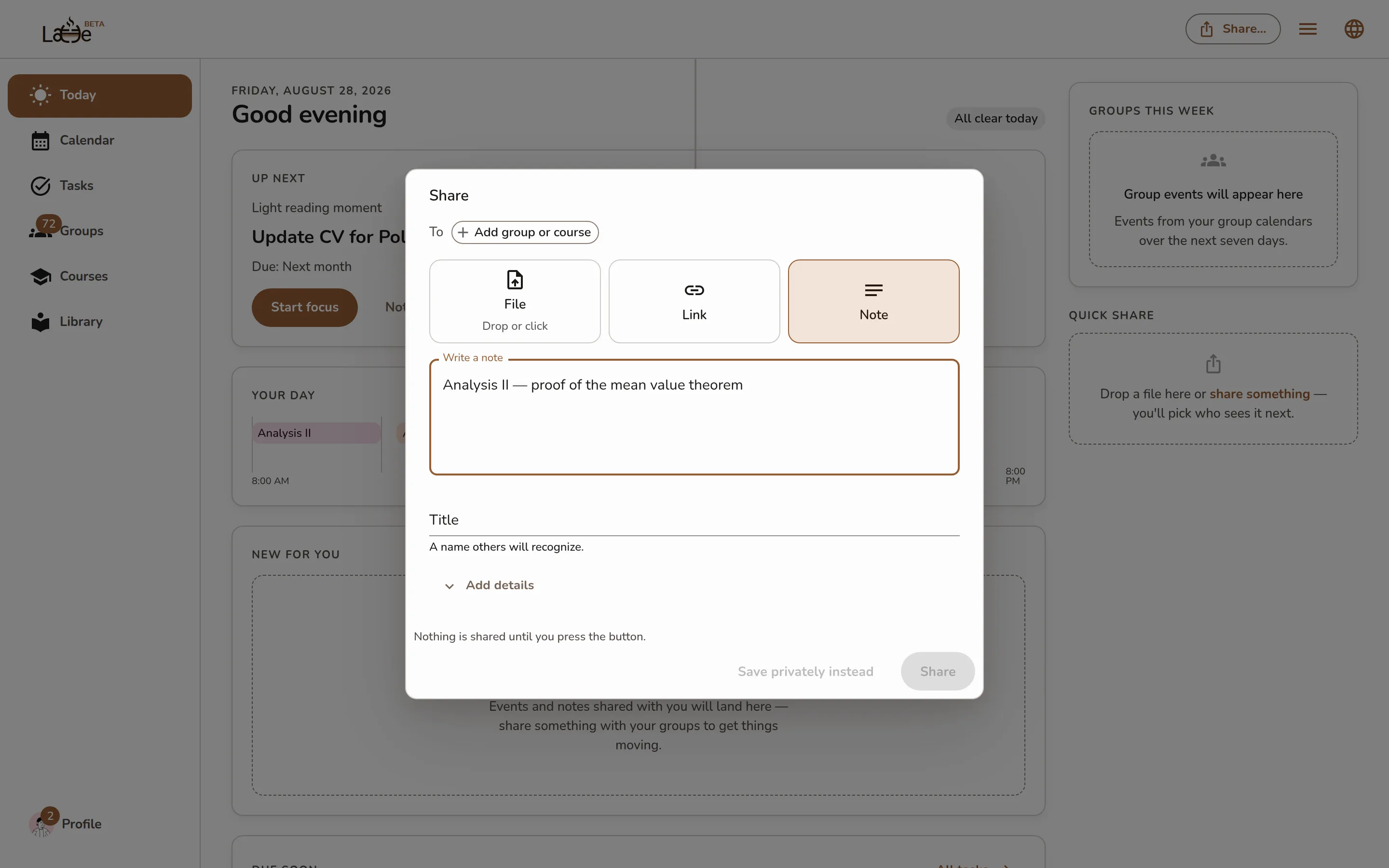
The Share sheet opened from the app bar's Share button: the To audience row with Add group or course, the File / Link / Note content picker with Note selected and a note typed in, the Title field, the collapsed Add details section, and the footer with Save privately instead next to the still-disabled Share button -
Pick what you're sharing: File (drop it or click to browse), Link (paste a URL), or Note (write it right there).
-
Under Turn this into, choose what it becomes: Keep as a note ("It becomes a note you can share with a group.") or Add as a task ("It becomes a task of yours and joins the ranking on Today. Nobody else sees it.").
Screenshot coming soonThe Turn this into row in the web Share sheet — a Keep as a note segment and an Add as a task segment with note selected, and the caption underneath explaining that a note can be shared with a group -
Give it a Title — a name others will recognize.
-
If you chose Add as a task: Add details opens by itself, with the date field renamed Deadline so you can't miss it. Fill it in, or leave it empty for something with no fixed date. The button at the bottom becomes Add to my tasks — a task has no audience, so the audience row no longer applies. Latte confirms with Added to your tasks.
-
If you chose Keep as a note: optionally open Add details to set a Course, a Date, and a Description — course and date help classmates find it later.
-
When you've selected a class group, an Also visible to future cohorts toggle appears. It's off by default — turn it on if next year's students should find your resource too.
-
Click the big button — it names its audience, Share to your group (or Share to N groups). Until you've picked an audience it stays disabled: nothing is shared until you press the button, and sharing with nobody is impossible. To keep the capture to yourself, use Save privately instead. Latte confirms with Shared. or Saved privately.
The desktop app has the same Share button and sheet.
-
Tap the Capture button — the floating + above the tab bar — to fan out the capture options. It's there on Today, Calendar, Groups, and Library, so capture is always one tap from where you start. It steps out of the way once you go into something: open a conversation, a course, or an event and the + disappears until you come back out. It also stays off the Profile tab.
Screenshot coming soonThe Capture FAB fanned open over the Resources tab, showing Take a photo, Pick a picture, Pick a PDF, Voice note, Share a link, and Quick text -
Choose a capture type: Take a photo, Pick a picture, Pick a PDF, Voice note, Share a link, or Quick text. A Voice note starts recording immediately — tap Stop & continue when you're done.
-
On the Share with screen, Turn this into asks what the capture should become: Keep as a note or Add as a task, with a line underneath saying what each does. Note is chosen for you; switch to task when it's something you have to do.
Screenshot coming soonThe destination segmented control at the top of the mobile share-target screen — a note segment and a task segment with note selected, and the explanatory line underneath saying what the chosen destination does -
Give your capture a Title and an optional Description.
-
If you chose Add as a task: a Deadline field appears. Fill it in, or leave it empty for something with no fixed date. Then tap Add to my tasks — a separate button from Share, so you can't create a task when you meant to share one. The task lands in your task list straight away.
-
If you chose Keep as a note: choose who sees it — tap the groups to share it with, or turn on Keep private (Only visible to you.). A class that's on your calendar right now is pre-selected, marked Suggested from your current class.
Screenshot coming soonThe mobile share sheet — the To audience row at the top with a suggested class chip and Add group or course, the Title field, the collapsed Add details section, and the footer with Save privately instead next to the audience-named Share button -
If you picked a class group, leave Visible across cohorts on so next year's students of that course can find it.
-
Tap Share (or Save privately). You'll see Shared! and the resource syncs to your groups instantly.
Note or task?
Use this rule: if it has to be done, make it a task. If it has to be kept, make it a note.
| Keep as a note | Add as a task | |
|---|---|---|
| Lives in | your Library | your task list |
| Can be shared with a group | yes | no — it stays yours |
| Can carry a date | a Date, for finding it later | a Deadline, which Latte acts on |
| Shows up in your next three | no | yes |
| Reminds you | no | yes, as the deadline approaches |
A note with a date on it is still just a note: the date helps you and your classmates find it, and nothing will ever bring it back to your attention. That is the single most useful thing to know here — a deadline captured as a note is a deadline you will miss.
When your capture already carries a date, Latte offers task first, because a dated capture is almost always something to do.
A captured task is an ordinary task
It goes through the same place everything else does. It can be edited, completed, linked to a course or broken into subtasks, and it competes on equal terms in your next three — Latte does not rank a task lower just because you captured it in two seconds during a lecture. That is the point.
Sharing from a group's own page? The sheet opens with that group already selected as the audience, so the big button already reads Share to that group — check the title and press it.