During a focus session
Once a session is running, the screen stays deliberately bare — your task, a gentle count-up, and the single next thing to do. Here's what each part does and how to wrap up.
- 🖥 Web
- 📱 Mobile
-
Your task sits at the top under Focusing on, with the elapsed time and focused so far beneath it. There's no countdown — finishing the task is the goal, not a timer running out.
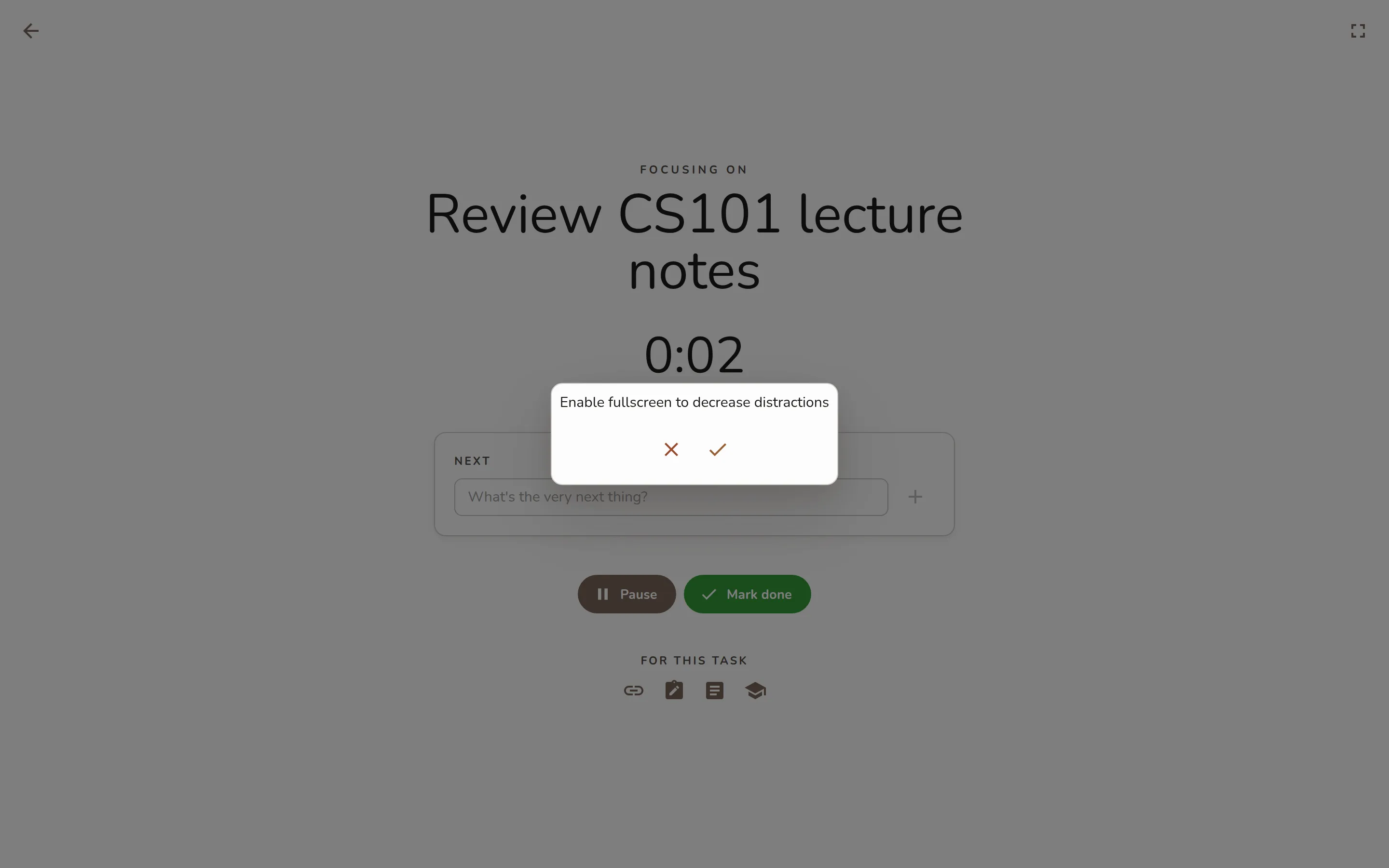
A running focus session: "Focusing on" task title, the count-up timer, the Next action card with its checkbox, and the Pause / Mark done control row. -
Under Next is the single next physical action — the first unfinished subtask. Click its checkbox to tick it off, and the following step slides into place. When they're all done you'll see All steps done — nice work. and a What's the very next thing? box to jot the next step without leaving the screen.
-
Need a breather? Click Pause, then Resume when you're back. The clock stops and starts again without losing the time you've banked.
-
Anything saved on the task — links and notes — stays within reach under For this task.
-
When you finish, click Mark done to complete the task and close the session (or End session if the session isn't tied to a task). To step away without completing, click the back arrow (Leave) in the top-left.
-
Your task sits at the top under Focusing on, with the elapsed time and focused so far beneath it — a count-up, never a countdown.
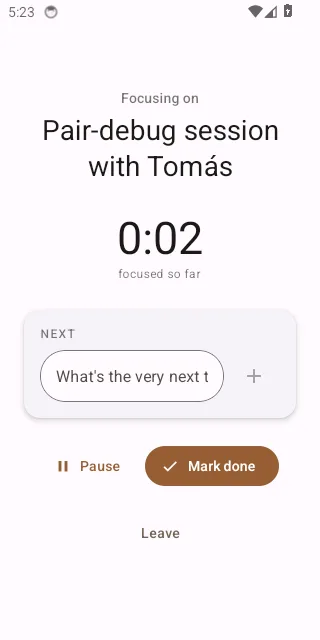
The mobile focus screen mid-session: task title, count-up timer, the Next action with its checkbox, and the Pause / Mark done buttons. -
Under Next, tap the checkbox next to the next action to tick it and move on. When everything's done, add the next step in the What's the very next thing? box.
-
Tap Pause to stop the clock and Resume to pick back up — your banked time is kept.
-
When you finish, tap Mark done to complete the task and end the session (or End session for a task-free one). Tap Leave to exit without completing.
Pausing keeps your banked time — only Mark done, End session, or Leave ends the session and resets the clock to zero.