Manage your subscription
Your Billing page shows the plan you're on and when it renews, and it's where you update your card, download invoices, and cancel or resume Premium.
On mobile, open the Profile tab and tap Subscription & billing. On the web, open
Profile from the bottom of the navigation rail and click Subscription & billing — the
Billing page lives at /account/billing, and the Manage subscription button on the Upgrade
page and Continue to your account right after checkout land there too.
- 🖥 Web
- 📱 Mobile
-
Open your Billing page. It shows your Current plan, your Status, and when the plan renews (Renews on a date, or Ends on a date if you've already canceled). On the Free plan it simply says You're on the Free plan.
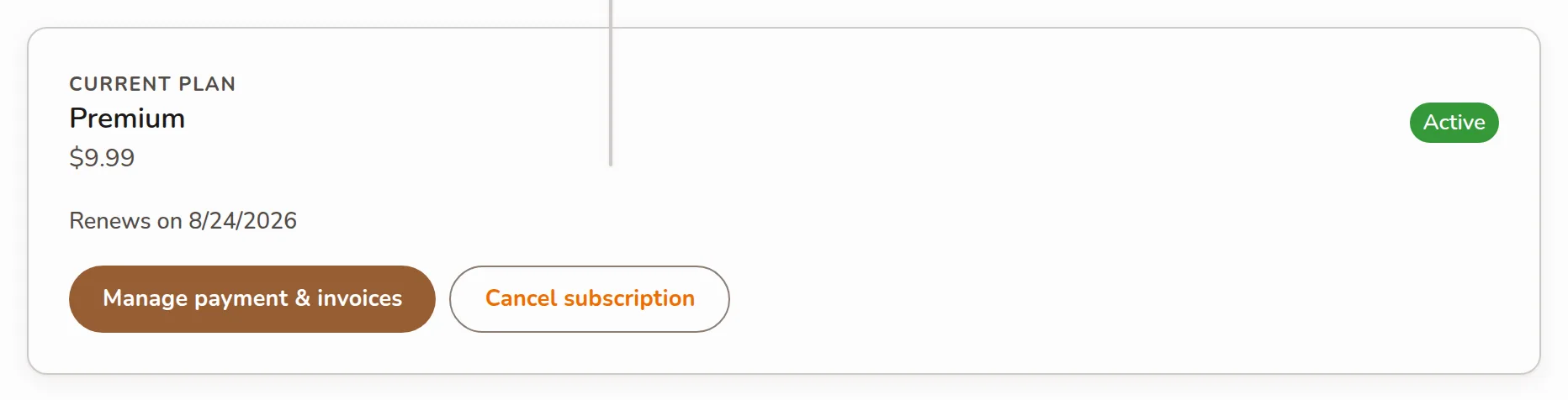
The Billing page card showing current plan, status, renewal date, and the Manage payment & invoices and Cancel subscription buttons -
To change your card or download invoices, click Manage payment & invoices. That opens Stripe's secure customer portal.
-
To stop future charges, click Cancel subscription and confirm. You keep Premium until the end of the current billing period — the page then shows Ends on that date.
-
Changed your mind before it lapses? Click Resume subscription.
-
At the bottom of this page sits the Danger zone, where you can delete your account for good.
-
Open the Profile tab and tap Subscription & billing. The screen shows your current plan, status and renewal date.
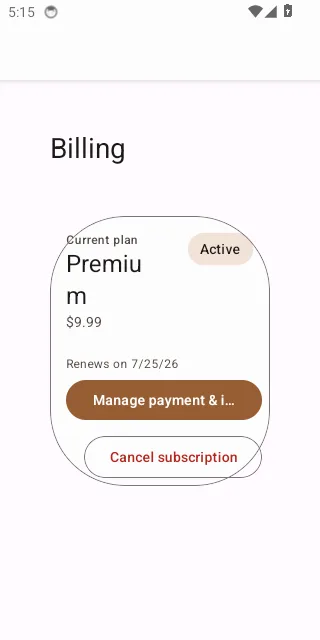
The mobile Subscription & billing screen showing the current plan, status, renewal date, and the manage/cancel buttons -
Tap Manage payment & invoices to open Stripe's customer portal in your browser, or Cancel subscription / Resume subscription to stop or restart the renewal.
-
Managing an existing subscription works on iPhone and iPad too — it's only buying that isn't available in the iOS app.
Canceling never cuts you off early — you keep every Premium feature until the date shown next to Ends on, and you can resume any time before then without paying again.