Manage your calendars
Each calendar has a settings dialog where you can import events into it, connect it to Google Calendar, or remove it entirely.
Managing calendars is a web feature. On mobile you can view your calendars and toggle which ones show on the grid, but importing, syncing, and deleting happen on the web or desktop app.
-
Open Calendar and open your Calendars list. Your own calendars are listed first, then your groups' calendars (labeled Group Calendar) — each row has a visibility toggle that shows or hides it on the grid.
-
Click one of your own calendars to open it. From here you can:
- Import events from .ics — bulk-add events from a calendar file,
- manage its Google connection under Synced to this calendar (see Sync Google Calendar),
- Delete calendar — remove it and everything in it.
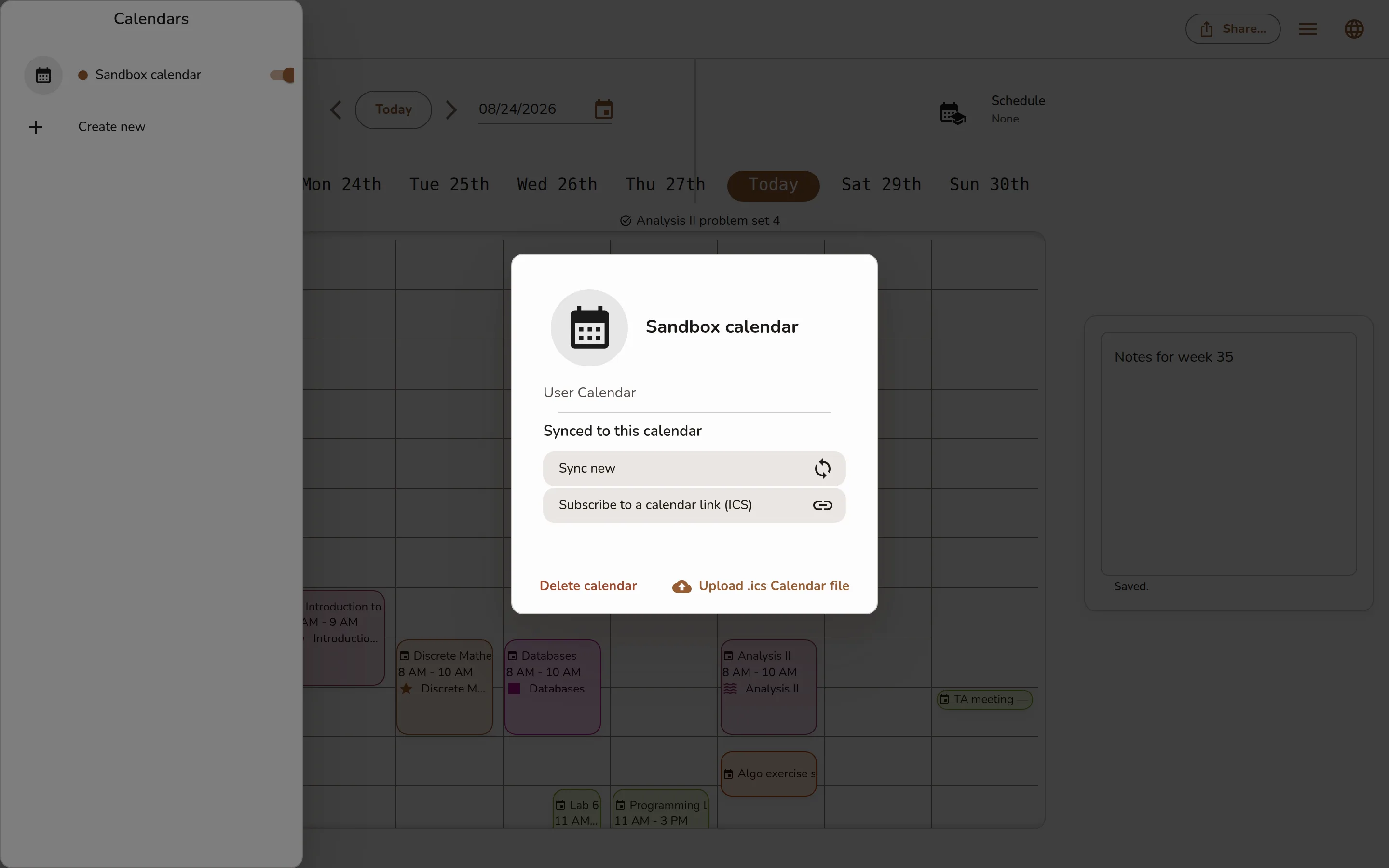
A calendar's settings dialog showing the Import events from .ics action, the synced-calendars section, and the Delete calendar button -
Deleting asks you to confirm, because "Deleting a calendar is irreversible and will delete ALL its events PERMANENTLY!"
A group's calendar can't be deleted from here — it belongs to the group, and leaving or removing the group is what removes it. Only your own calendars have the Delete calendar button.