Subscribe to a calendar link (ICS)
Most schools publish timetables as a calendar link — an address ending in .ics that any
calendar app can follow. Paste one into Latte and its events land in the calendar you choose, and
stay up to date as the feed changes.
This page is written against the shipped code, but no screenshots have been taken of the new screens yet — the images below are described placeholders.
- 🖥 Web
- 📱 Mobile
-
Open Calendar and click the calendar icon in the toolbar to open the Calendars drawer.
-
Click the calendar you want the feed's events to land in. Its dialog opens, with a Synced to this calendar section.
-
Click Subscribe to a calendar link (ICS) — "Follow a published calendar feed (school timetable, LMS export…) by pasting its link".
-
Paste the link into Calendar link. Latte takes secure
https://links and rewriteswebcal://links for you; plainhttp://links are refused with Only secure (https) links are supported. You can give the feed a Display name if you like.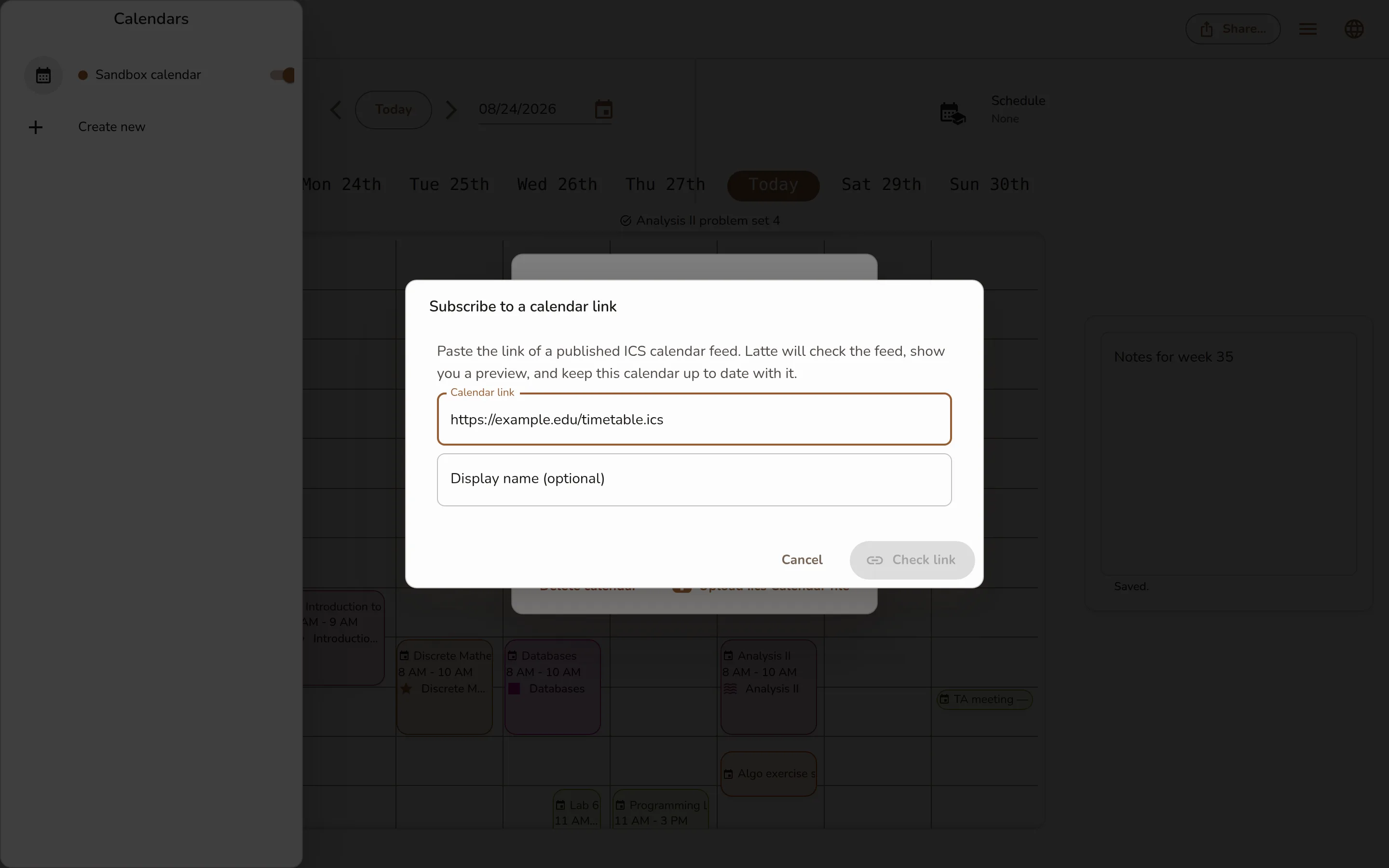
The Subscribe to a calendar link dialog with an https ICS link pasted into Calendar link, the optional Display name field, and the Check link button -
Click Check link. Latte fetches the feed and shows a preview — how many events it found, and up to five sample events — without importing anything yet.
-
Click Subscribe. Latte imports the feed straight away: Subscribed! Events from this feed will appear in this calendar shortly.
-
The feed now appears under Synced to this calendar with a status chip — Active, Failing or Disabled — and an unsubscribe button. Unsubscribing removes the events that came from that feed.
Identical in the desktop app.
-
Open the Calendar tab and tap the Calendar sync icon in the header — the first sync screen Latte has had on the phone.
-
If you have more than one calendar, tap Latte calendar to pick which one the feed lands in.
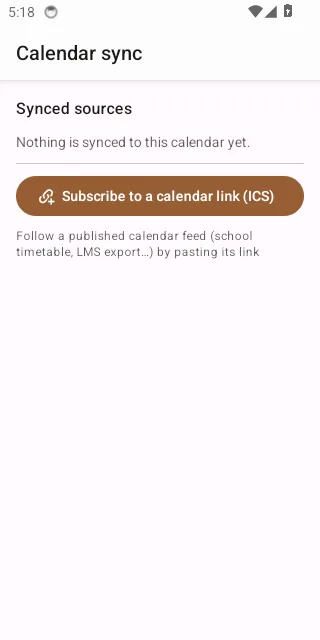
The mobile Calendar sync screen: the Latte calendar picker, the Synced sources list, and the Subscribe to a calendar link (ICS) entry -
Tap Subscribe to a calendar link (ICS), paste the address into Calendar link, tap Check link to preview it, then Subscribe.
-
Your feeds are listed under Synced sources with their Active / Failing / Disabled chip and an unsubscribe button. Before you add anything, the screen reads Nothing is synced to this calendar yet.
Google Calendar rows appear on this screen too, but you can't change them from the phone — "Google Calendar sync is set up and managed on the web app."
How often it refreshes, and what the statuses mean
Latte re-reads each feed every few hours — it isn't instant, so an event added to your school's timetable this minute won't appear in Latte this minute.
- Active — the last refresh worked.
- Failing — several refreshes in a row failed: "The last N refresh attempt(s) failed — check that the link is still published." Latte keeps retrying, but less often.
- Disabled — it kept failing, so Latte stopped retrying. Fix the link (or re-save the feed) to start it up again.
If a feed moves an event you already had, your phone gets a Deadline updated push — see Notification preferences.