View and manage members
Every group has a Members list that shows who's in it. From there you can add someone as a friend, or — if you have the privileges — remove a member.
- 🖥 Web
- 📱 Mobile
-
Open the group from Groups.
-
Switch to the Members tab to see everyone in the group — the header also counts the members and shows who's online.
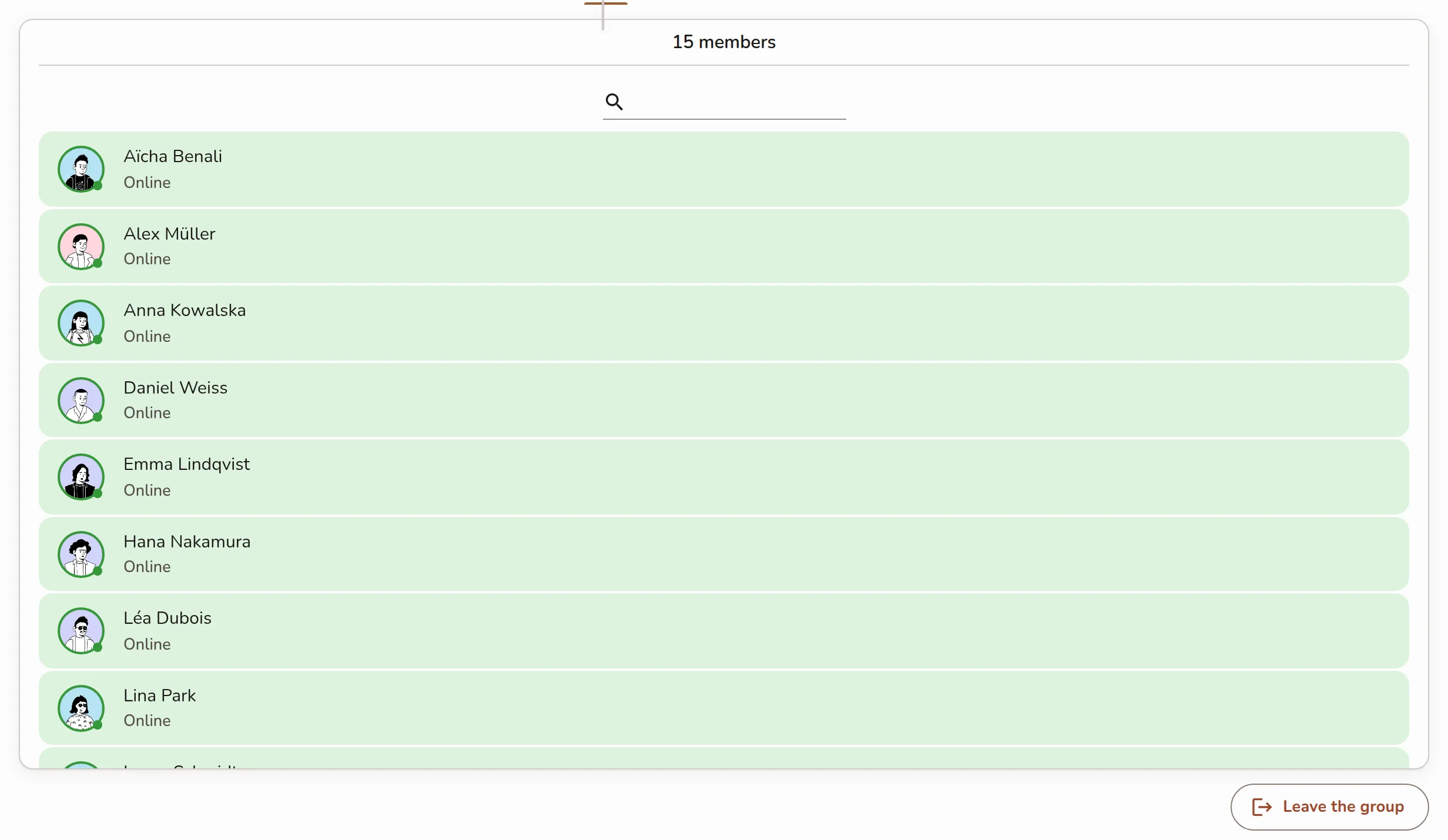
The group space Members tab listing members, with the header's member and online counts above it -
Click a member to see more about them, or add them as a friend.
-
To remove someone, use Kick from the group and confirm in the dialog that asks whether to kick them.
-
Open the group from the Groups tab, then open the navigation drawer with the button at the top right and tap Members.
Screenshot coming soonThe mobile group Members screen with the list of members -
Tap a member to view their profile or add them as a friend.
-
To remove someone, use Kick from the group and confirm.
A kicked member isn't banned — they'll simply need a member to invite them again before they can rejoin.