The group space
On the web, everything a group does lives on one page — its group space. No more hunting across the app for "that PDF someone posted": the chat, the group's shared task list, its events, everything shared into the group, and the member list sit side by side in five tabs.
-
Open Groups in the navigation. The left rail lists your conversations — flip between Chats and Discussions with the chips at the top — and clicking a group opens its space. (Clicking a friend opens your private chat instead.)
-
The header shows the group's name, its type, how many members it has and how many are online — plus a one-click Copy invite link button. See Invite people to a group.
Screenshot coming soonA group space: the header (name, type · members · online, avatar stack, Copy invite link) above the Chat / Tasks / Events / Resources / Members tabs with Chat active (a CLASS group also shows Teams) -
Chat is the conversation, exactly as you know it — with a labeled + Share button next to the message bar for sharing a File, Link or Note, starting a Discussion, creating a Poll, or choosing Plan a meeting, without hunting through icon buttons. (Plan a meeting opens a meeting poll, which finds a time everyone is free — it is not the same thing as sharing an existing event. To share an event you already have, use Share an event.) When someone shares an event into the chat, its card carries Add to calendar directly — you don't have to open anything to accept it. See Group events on your calendar.
-
Tasks is the group's shared task list — the work the group has taken on, grouped by when it's due, with the faces of whoever it's been handed to on each row. The Add a task… field at the top already knows which group you're in, so anything you add here belongs to this group; you only choose the people. See Assign tasks to your group.
Screenshot coming soonThe group space Tasks tab — the Add a task field with the group already fixed, above the group's shared task list (or its empty state, when the group has taken nothing on yet) -
Events is the group's agenda: upcoming events from the group's calendar, each with its date and time (or All day). Click any row to open the event. If the event is a task's deadline, the row also shows who's assigned to it. Schedule a meeting starts a meeting poll right there.
-
Resources collects everything shared into the group — Shared notes, Links, and Discussions, each with a count. A note opens in the Library; links and discussions open in place. If nothing has been shared yet, the tab says so plainly.
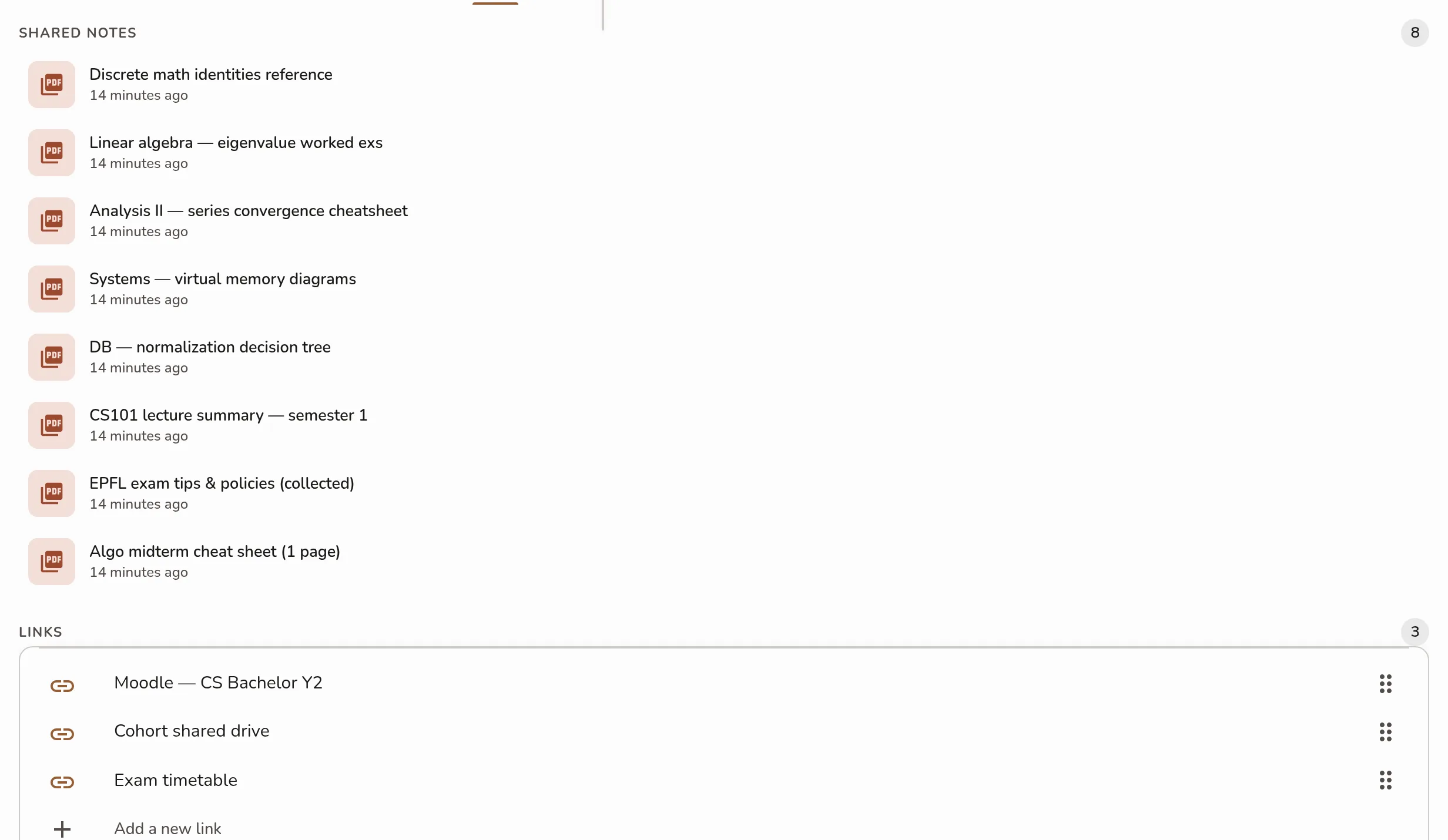
The group space Resources tab with its Shared notes, Links, and Discussions sections, each with a count chip -
Members shows who's in the group — and holds the Leave group action. See View and manage members.
Each tab has its own address, so you can bookmark or share a link straight to a group's Resources or Events tab.
The mobile app keeps its existing layout. A group's chat, members, resources and links are separate screens rather than tabs: open the group from the Groups tab, then use the navigation drawer at the top right to move between them.