Add friends
Adding someone as a friend lets you start a private chat and keep up with each other. You find people by their unique username — the lowercase handle on their profile, which is different from their display name.
Ask your friend for their unique username, or have your own invite link ready to send them.
- 🖥 Web
- 📱 Mobile
-
Click Profile in the navigation, then look at the Friends panel.
-
Click the add-friend icon in the top-right of the panel. The Add a new friend! dialog opens.
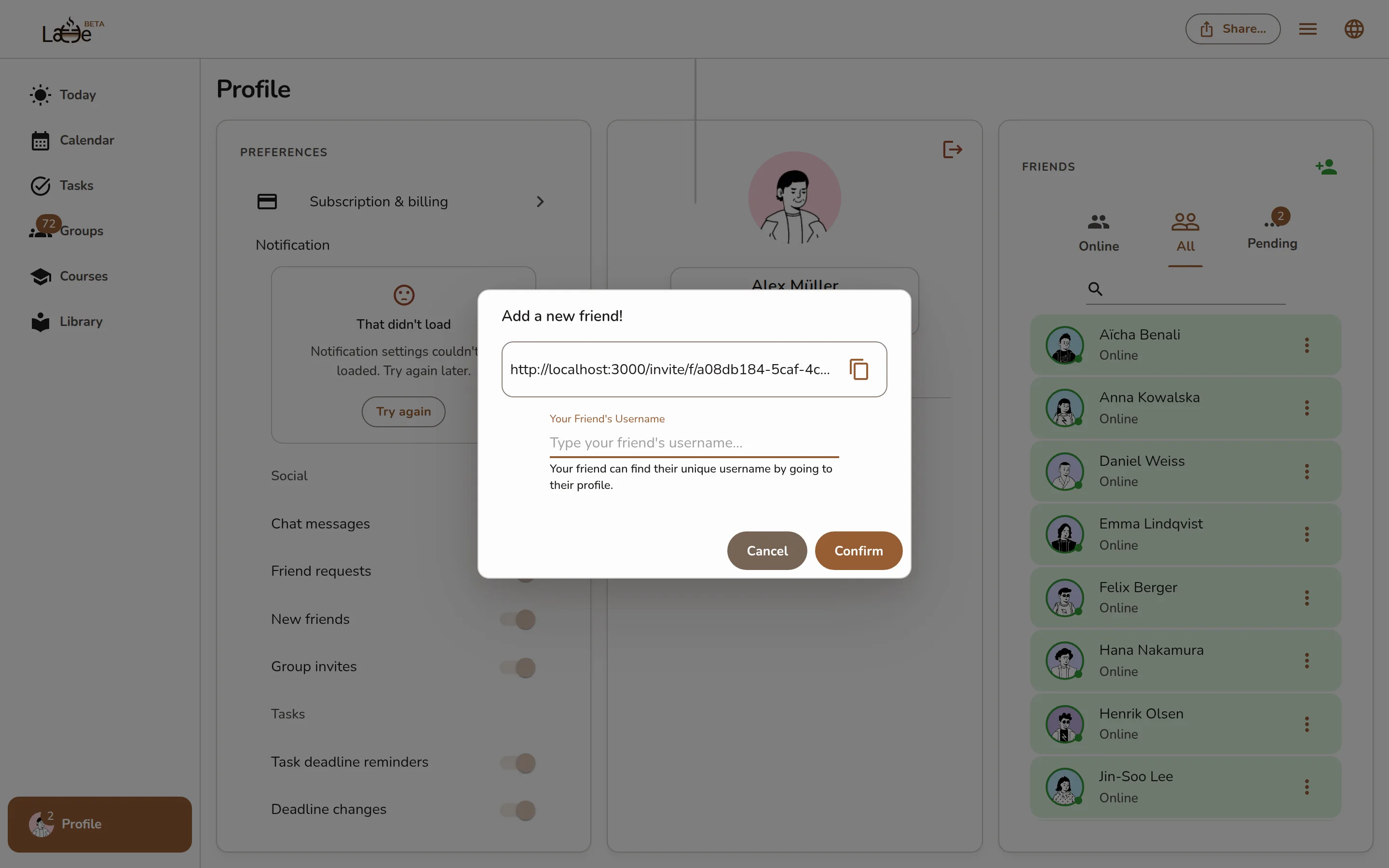
The Add a new friend! dialog with the invite link and the username field -
Type your friend's handle in the Your Friend's Username field, then click Confirm.
-
Or copy the friend invite link shown at the top of the dialog and send it to them — it works for people who aren't on Latte yet.
-
Open your profile and tap Friends.
-
Tap Add a new friend!, then pick a method under Add a friend through...:
- Username — type their handle and tap Confirm.
- QR Code — scan your friend's code, or show yours for them to scan.
- Friend Link — share a friend invite link through any app.
Screenshot coming soonThe Add a friend through... bottom sheet listing QR Code, Friend Link, and Username
A person won't appear in your friends list until they accept your request. You can see and cancel a request you've sent from the Pending view — see Manage friend requests.